
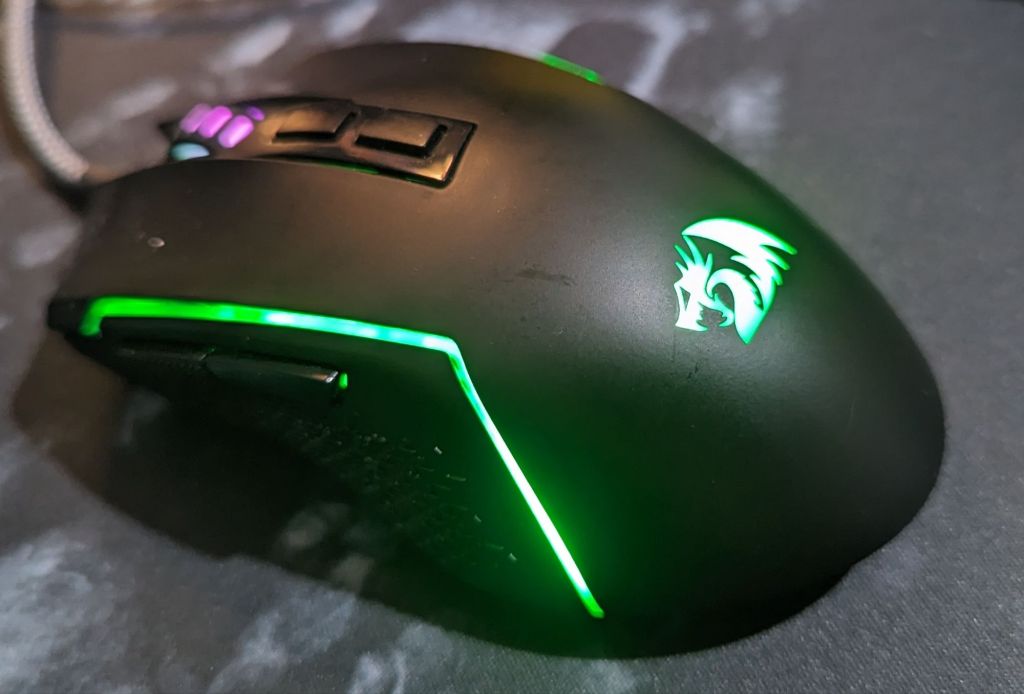
If you have been on this site for a while, you will have read my earlier post about my (Keyboard) and my previous post about the Redragon K632 Noctis Pro Gaming Keyboard you will see that I do like Redragon hardware, I may look to change more of my hardware to Redragon devices such as my webcam and I may even decide to swap out my Yamaha amp and (bookend speakers) for a simpler setup. However, for now, I’m just looking at my new mouse.

I bought this mouse, last year in 2023 and I paid £26.99, Redragon does have more advanced mice available however this was the mouse that I was looking for. As with the keyboards, I was looking for a mouse with multiple ways to connect. This mouse allows you to connect to up to 3 different Bluetooth devices, use the 2.5GHz USB dongle or you can plug it into your computer for a simple wired connection. I mainly use this in wired mode as I don’t use my keyboard away from the desk, this means that there isn’t the same delay that you would see on Bluetooth or the 2.4 GHz dongle. However, I have seen a strange issue where if you have both the Redragon keyboard and mouse on their provided wireless dongles, they seem to interfere with the signals and cause them to keep disconnecting randomly. This may be because they use the same wireless frequency and protocols, but I can’t seem to be able to pair them both to the same dongle to stop this from happening.
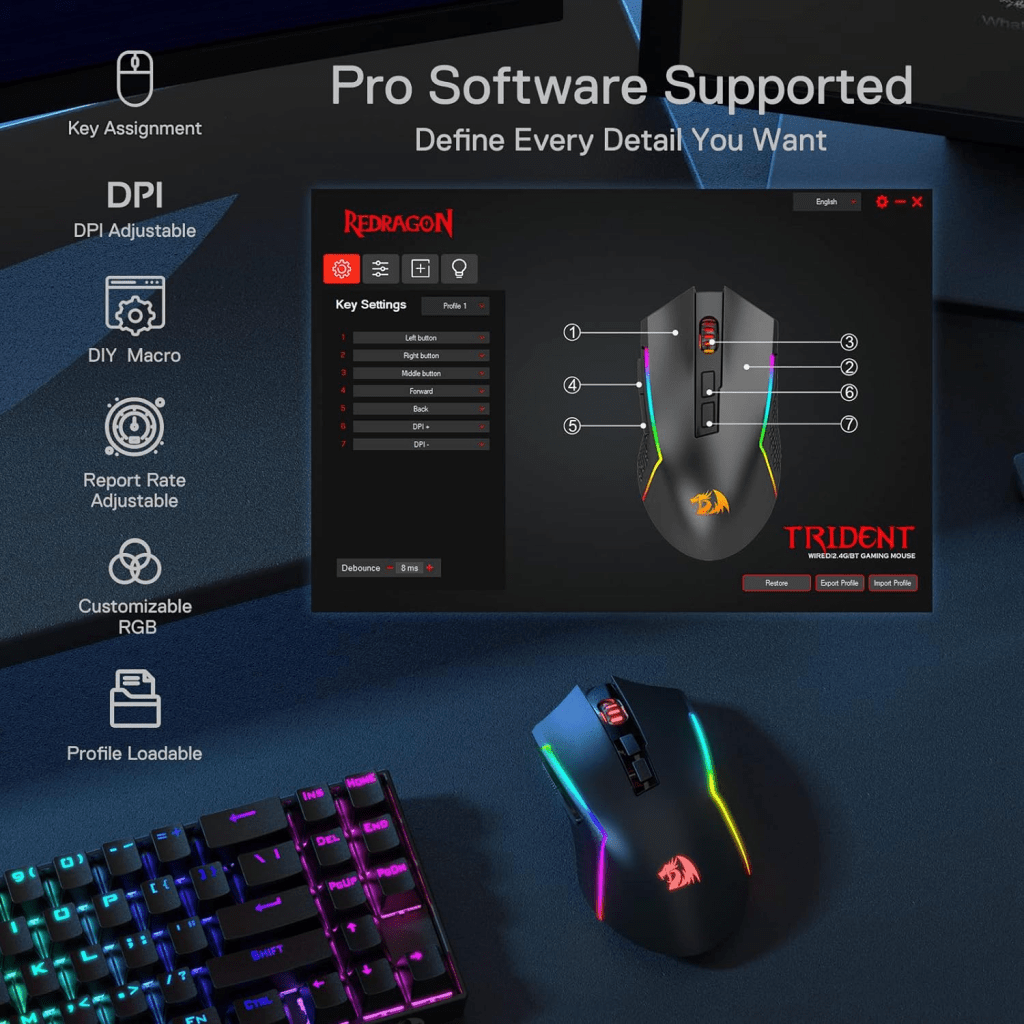
As with all Redragon peripherals, you have to download individual software to personalize your device. There are loads of different customizable options that you can configure in the software. I’ll cover these later on. I have both this and a Redragon Keyboard and you can synchronize the RGB settings so that they complement each other, If they merged the software into one package it would be so much better. I would also like it if they would support the same integration into Windows as Razer and Corsair do so that when you change your desktop colour theme the RGB changes as well.
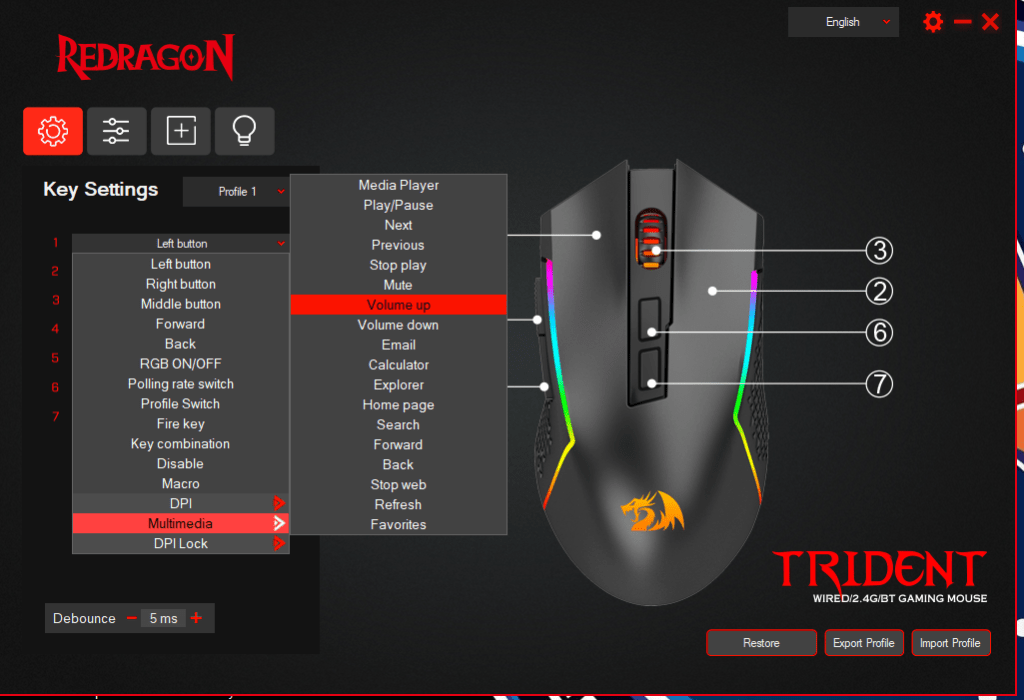
As I covered previously, there are four tabs of customizable options on this mouse. On the first tab, you can re-program the mouse keys to different actions. This means that any one of the buttons could do something different such as Play/Pause for videos and music, open up your home Page on your default Browser, you can even assign a dedicated Macro button if you want to.

On the second tab, you can change your DPI settings and even how many of the 5 available stages you want, I only use the first 3 as the other stages move too fast so I disabled them for ease. If you play games where you need to have fast reactions then you can choose between 4 different settings for the polling rate up to 1000Hz. You can even decide on the brightness of your DPI indicator
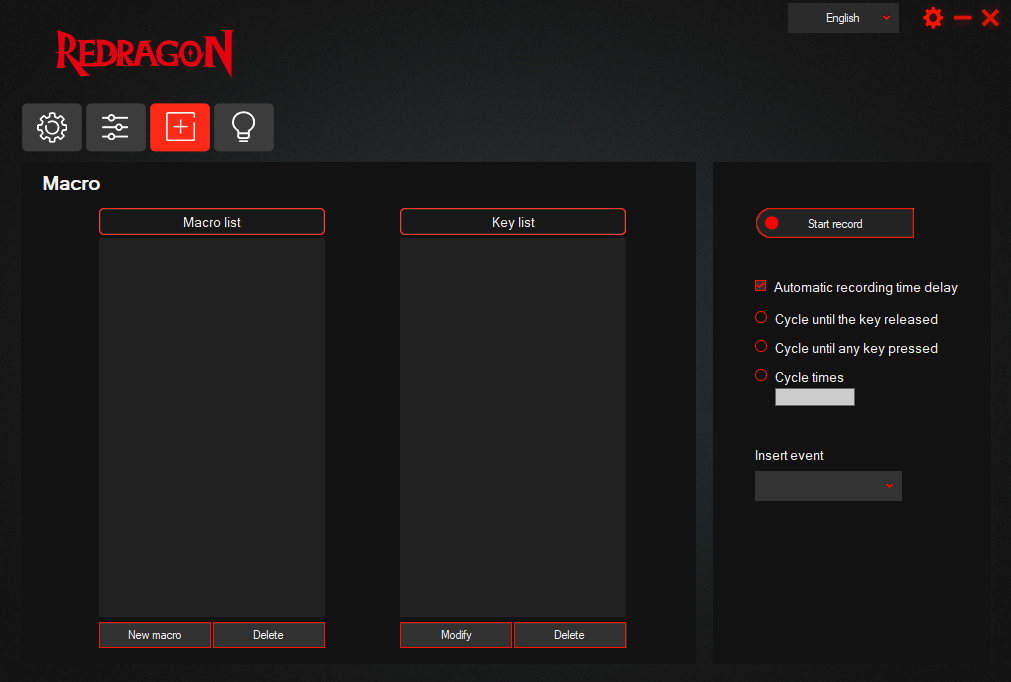
Marcos are on the third tab, and if you use them, then this is where you would set them up. I don’t use macros on my mouse, so I didn’t set this up. First, you have to click the New Macro button and give it the perfect name. Then you select the macro you have chosen and click the “Start Record” button, this is where you record whatever macro you want to use. Once you have clicked the “Stop Record” you can choose how the macro is actioned. To assign the macro to a button you can select from the drop-down menu.
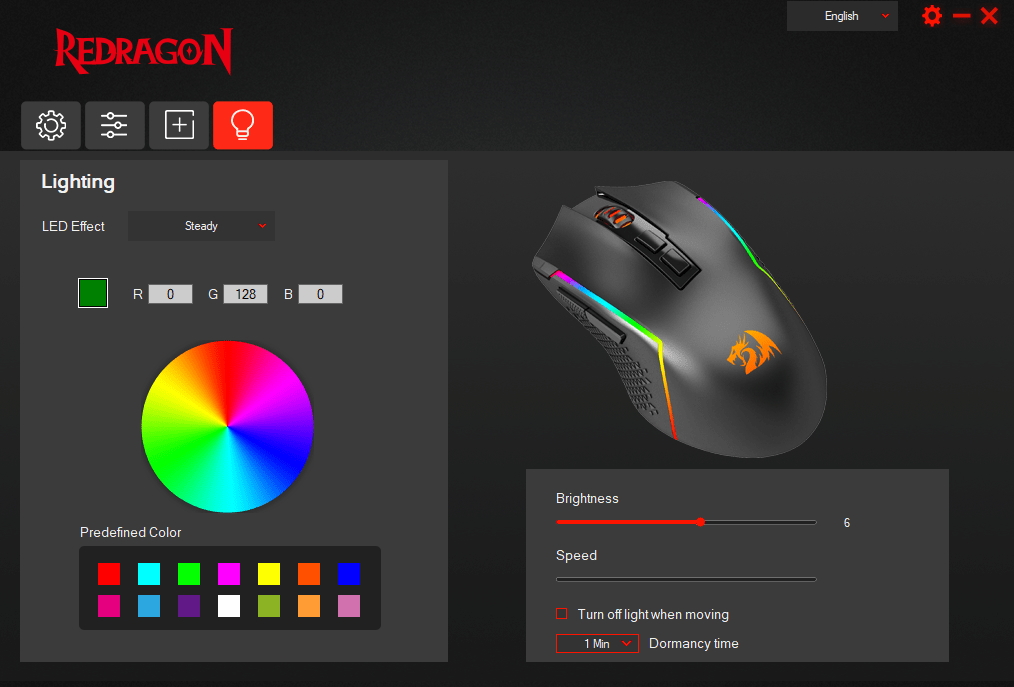
On the fourth and final tab, you will find the RGB settings for the two stripes at the side and also the scroll wheel. You can either pick from the 14 pre-set colours, manually type in between 1 – 255 in either the Red, Green and Blue or you can choose the colour inside the colour wheel. If unlike me, you want to use an effect for your lights then you can select the LED effect in the drop-down menu, and towards the side, you will see the sliders here you can select the brightness of the LRD and the speed of the effect you chose in the effects box.
This mouse is perfect for me as it matches my Redragon K621-RGB Keyboard, which I will be covering at a later date. In my line of work, I’m constantly using the left and right click buttons, and they still feel as clicky as they did when I got it out of the box. I also use the dpi buttons a lot, as I go between roaming across my screens and tracing some boxes to highlight them in a screenshot. I would recommend this to you if you are looking for an RGB Gaming mouse and don’t want it to cost the Earth.
My Setup
Dual Dell Monitors – https://amzn.to/483yRmS
M4 Pro MacBook Pro 14″- https://amzn.eu/d/1hONRrV
Redragon K621 Horus – https://amzn.to/45CXFAy
Ergonomic Wrist Rest – https://amzn.to/3P74H9P
Google Wifi – https://amzn.to/3LdnVJE
Lenovo ThinkPad USB 3.0 Pro Dock (Refurbished) – https://amzn.eu/d/36fxbr2
WORLDLIFT Quad Monitors Desk Mount – https://amzn.to/44DkfrK
Yottamaster 5 Bay Hard Drive Enclosure – https://amzn.to/480doLM
AUGOLA Laptop Stand – https://amzn.to/3RdiE8P
Redragon M693 RGB Wireless Mouse – https://amzn.to/45FfyPh
If you would like to donate directly to me, then do so at the following PayPal link – PayPal
If you would like to send me items to take a look at, then email us here
 Jamie Warren's Tech
Leave a comment